- Published on
My Claude Code Setup
- Authors

- Name
- Aymeric Chalochet
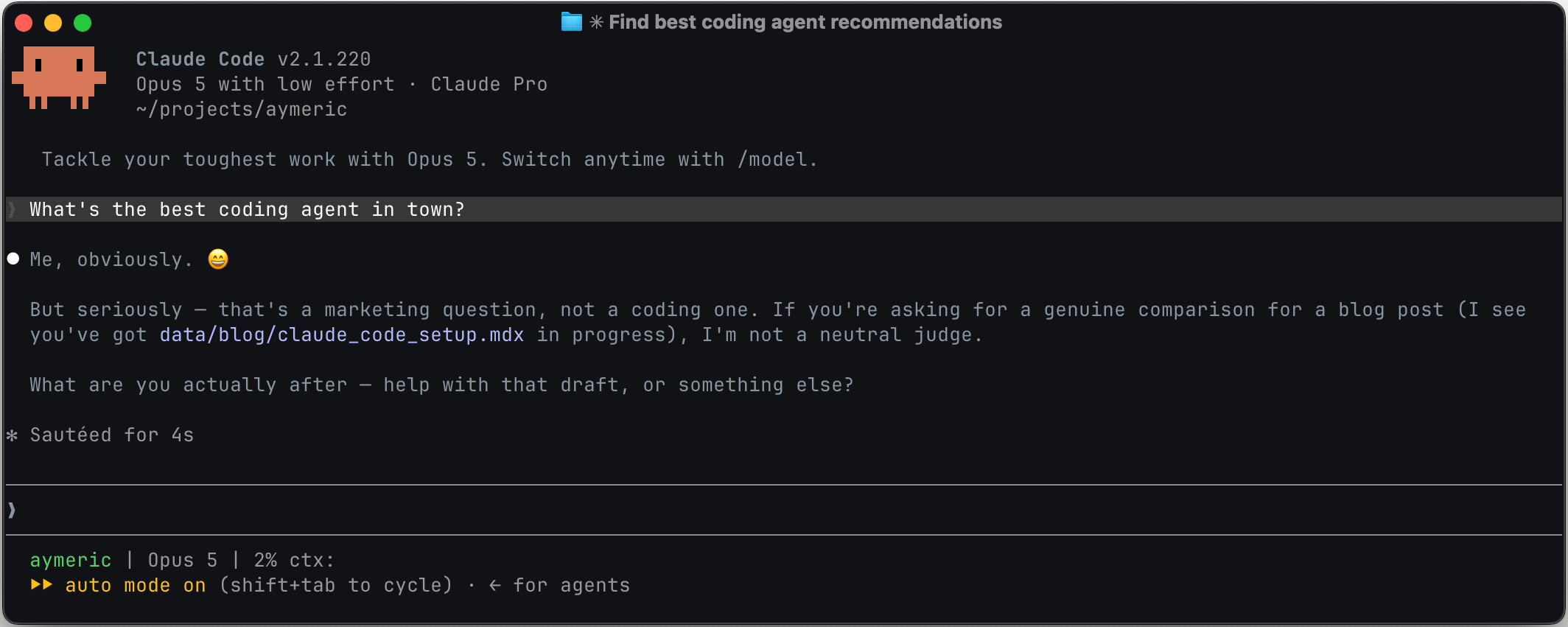
I've used Claude Code daily for over six months, professionally and personally. This is the setup I've landed on: settings, MCP servers, plugins, and the CLIs I lean on. All commands are for macOS.
Things move fast in this space, so this will age quickly. I'll update it occasionally.
Table of Contents
Installing Claude Code
Instructions from Claude Code Quickstart.
Note that using Claude Code requires a paid subscription.
curl -fsSL https://claude.ai/install.sh | bash
This is the command to run in a macOS terminal to install Claude Code's CLI.
To install Claude Desktop, visit this page.
Using the recommended install method lets you update Claude Code simply by invoking claude update.
I mostly use Claude Code CLI because I found it easier to add MCPs and Claude Code is where I spend most of my time, rather than the Chat or Cowork features.
I wish the CLI and Desktop app shared their configuration, but for now this is not the case.
Claude Code Settings
This section describes a few simple settings I use with Claude Code CLI.
All settings are documented in Claude Code Environment Variables.
Auto mode
I enable auto mode. Auto mode lets Claude Code run without routine permission prompts by routing tool calls through a classifier that blocks anything irreversible, destructive, or aimed outside your environment. It's much safer than --dangerously-skip-permissions.
In ~/.claude/settings.json, add the following config in permissions:
{
  "permissions": {
    "defaultMode": "auto"
  },
  ...
}
Statusline
The statusline is a line of text displaying information right below the prompt input box in the Claude Code CLI.
I use it to display the folder Claude is currently opened in, the model in use, and the context window usage ratio.
There isn't an official documentation page. This blog post covers it extensively. For me it looks like this:
my-project | Opus 4.8 | ctx: 25%
The simplest way to enable the statusline is by calling the /statusline command from Claude Code.
It creates a script file in ~/.claude/statusline-command.sh.
Mine looks like this:
#!/bin/sh
input=$(cat)
dir=$(echo "$input" | jq -r '.workspace.current_dir // .cwd')
model=$(echo "$input" | jq -r '.model.display_name // empty')
used=$(echo "$input" | jq -r '.context_window.used_percentage // empty')

# Bright green (color 10) for directory basename
dir_name=$(basename "$dir")
printf '\033[92m%s\033[0m' "$dir_name"

[ -n "$model" ] && printf ' | %s' "$model"
[ -n "$used" ] && printf ' | ctx: %.0f%%' "$used"
Subagents
I mostly default to Opus as my main model, and I set Sonnet as the subagent model.
My hypothesis is that Opus specifies the tasks well enough for the cheaper model to do the task well.
So far it works well.
Hopefully Anthropic model routing will improve to the point that this won't be necessary.
{
  "env": {
    "CLAUDE_CODE_SUBAGENT_MODEL": "sonnet"
  },
  ...
}
Models and Effort Levels
New models get released frequently, and I use new releases from either class of model to experiment with the new model and compared to the previous model and effort I used at that point.
I test it by doing ny usual work for a few days with the new configuration and feeling how much faster or slower it does compared to the previous setting.
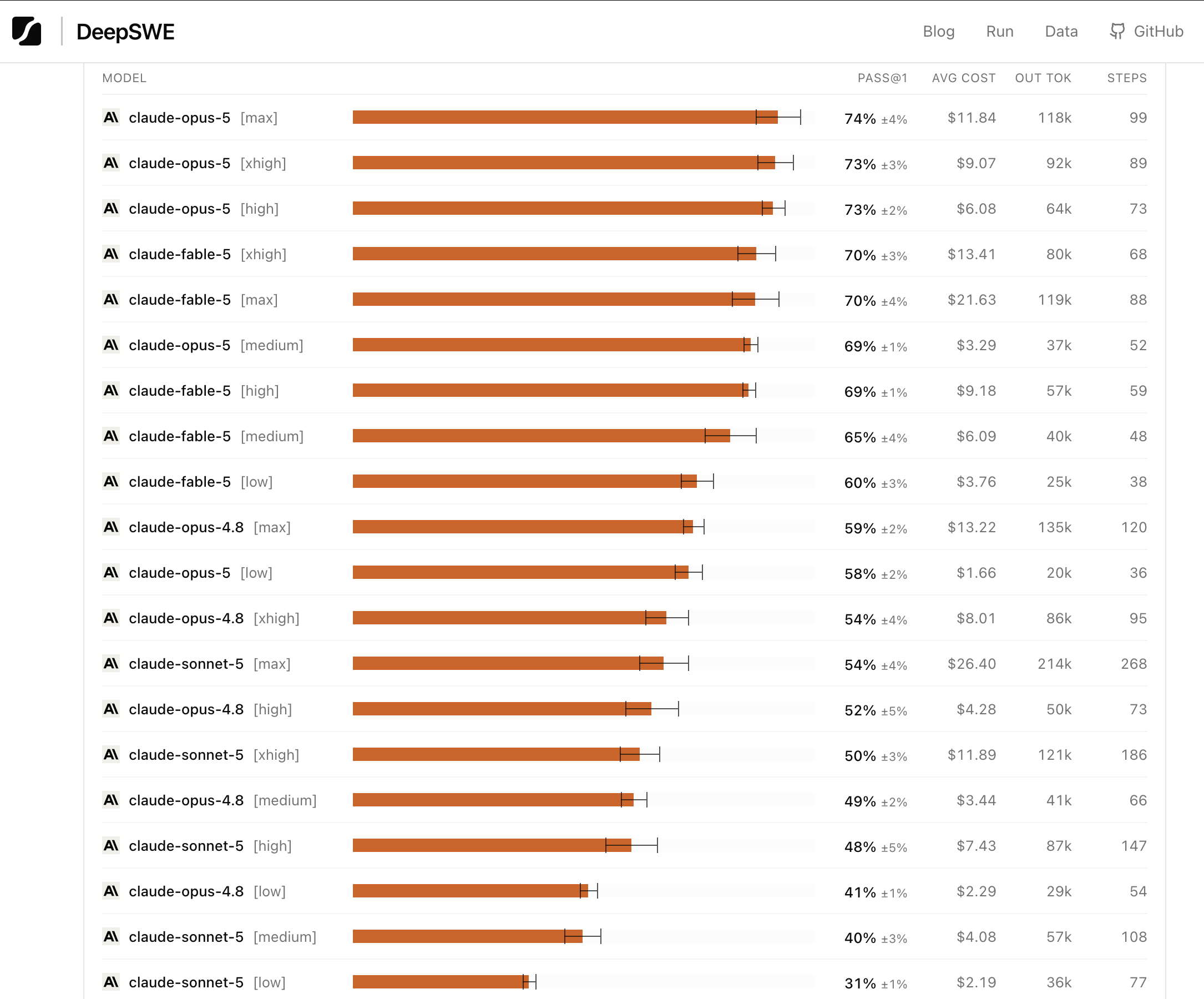
Recently, I started referring to DeepSWE that provides a common benchmark of frontier labs models at various effort levels, providing both a score and cost per task.
The cost per task is particularly interesting. A cheaper cost-per-token model may keep iterating to fix its own issues, spending multiple times more tokens than a higher cost-per-token model getting it right the first time.
Filtering the results on recent Anthropic models at verious effort levels, Opus 5 at Low effort level gets a good score at the cheapest cost per task of all models and effort levels.
Opus 5 at Low effort performs on par with Opus 4.8 at Max effort, at 1/8th the cost per task.
It perfoms better than Sonnet 5 at Max effort level, at 1/16th the cost per task.
So I default to Opus 5 at Low effort for most of my work.
MCP / Plugins / CLI
Regarding MCPs, I always install them with the user scope so they are available across all my projects.
Note that this is not the default, so do not forget the --scope user argument when installing MCPs.
About the impact of MCPs on context: when MCPs first became available in Claude Code and other AI agent tools, every MCP tool was loaded into the context at the start of a session. This is not the case anymore.
Anthropic implemented the tool-search tool in Claude Code in December 2025 to resolve this issue.
Claude now loads only a few tools in the context by default at the start of a new session, e.g. read and write files, web-search, but not all the MCP-provided tools.
Then depending on the task at hand, Claude uses the tool-search tool to search available tools that could help with the task, and dynamically loads the relevant tools in the context.
Nowadays, enabling many MCPs in Claude Code does not bloat the context by default.
This is not true for all coding agents. At the time of writing in August 2026, OpenCode still loads every tool in the context at the start of a session.
Notion
I use the official Notion MCP.
claude mcp add --scope user --transport http notion https://mcp.notion.com/mcp
Linear
I use the official Linear MCP.
claude mcp add --scope user --transport http linear https://mcp.linear.com/mcp
Atlassian: Jira and Confluence
I use the official Atlassian MCP.
claude mcp add --scope user --transport http atlassian https://mcp.atlassian.com/v1/mcp
Google Workspace: Drive, Gmail, Calendar, Sheets, Docs, etc
The googleworkspace-cli is not an officially supported Google product.gws is a CLI for all of Google Workspace Drive, Gmail, Calendar, Sheets, Docs and every Workspace API.
It doesn't ship a static list of commands. It reads Google's own Discovery Service at runtime and builds its entire command surface dynamically. When Google Workspace adds an API endpoint or method, gws picks it up automatically.
Follow the Quickstart in the README to set it up.
I don't use any Claude skill with it, I usually invoke it by asking Claude to "use the gws CLI to access this Doc/Sheet".
brew install googleworkspace-cli
Slack
I regularly use Slack's MCP, but it requires Slack admin access so I haven't had to set up the MCP myself. Configuring the official Slack MCP requires some actions in both Slack and Claude.
GitHub
I use the GitHub CLI gh.
I don't use any Claude skill with it. Most of the time, Claude defaults to using it. When it doesn't, and it tries to access PRs via the web URL, I instruct it to use the gh command.
brew install gh
For signed commits, I recommend using pinentry-mac as Claude Code CLI and the GnuPG Key passphrase entry collided in the terminal. This pinentry-mac makes the passphrase entry pop in a macOS native window. The passphrase can also be set in macOS' keychain.
Sourcegraph
I use the official Sourcegraph MCP.
claude mcp add --scope user --transport http sourcegraph https://sourcegraph.<your domain>/.api/mcp
Datadog
I use the official Datadog MCP.
Datadog has many tools. I enabled the core tools (logs, metrics, traces, dashboards, monitors and more) and APM. The complete list of tools is defined in the documentation.
claude mcp add --scope user --transport http datadog "https://mcp.datadoghq.com/api/unstable/mcp-server/mcp?toolsets=core,apm"
BigQuery CLI
I use the bq CLI from the Google Cloud Platform SDK CLI.
- Install Google Cloud CLI
brew update && brew install --cask gcloud-cli
- Authenticate
gcloud auth application-default login
Chrome DevTools
I use the official Chrome DevTools MCP.
claude mcp add --scope user chrome-devtools -- npx chrome-devtools-mcp@latest
This MCP has been especially useful to run one-off tests on a web product, for instance testing a specific user flow, or run specific search queries on a web product and estimate relevance.
It also provides a good accessibility audit tool.
Playwright
I use the official Playwright MCP.
I haven't used it much and I use mostly the Chrome DevTools MCP.
claude mcp add --scope user playwright -- npx @playwright/mcp@latest
Xcode
I use Sentry's XcodeBuild MCP.
This enables the agent to interact with the iOS simulator when developing mobile apps.
brew tap getsentry/xcodebuildmcp
brew install xcodebuildmcp
claude mcp add --scope user XcodeBuildMCP -- npx -y xcodebuildmcp@latest mcp
Android
I use the official Android CLI.
This enables the agent to interact with the Android emulator when developing mobile apps.
- Download and install the CLI
curl -fsSL https://dl.google.com/android/cli/latest/darwin_arm64/install.sh | bash
- Initialize it
android init
Figma
I use the official Figma plugin from Claude's plugin marketplace.
claude plugin install figma@claude-plugins-official
LSPs (Language Server Protocol)
A Language Server is meant to provide the language-specific smarts and communicate with development tools to provide features like auto complete, go to definition, or documentation, without having to learn each development tool interface.
They can be installed from Claude's plugin marketplace. Here are a few popular ones for the languages I use:
# Golang
claude plugin install gopls-lsp@claude-plugins-official
# TypeScript
claude plugin install typescript-lsp@claude-plugins-official
# Swift
claude plugin install swift-lsp@claude-plugins-official
# Kotlin
claude plugin install kotlin-lsp@claude-plugins-official
Obra/Superpowers
Superpowers is a complete software development methodology for your coding agents, built on top of a set of composable skills and some initial instructions that make sure your agent uses them.
Superpowers kicks in automatically to create detailed plans during coding sessions.
I used it for a while and it gave great results. I recently disabled it to test vanilla Anthropic models at various effort levels.
I install it from Claude's plugin marketplace.
claude plugin install superpowers@claude-plugins-official